
🤖 How-To Guide: The Norma Chatbot Section
This section is your personal AI-powered assistant for the Governa platform. Instead of manually searching for information, you can ask Norma questions in plain English, and it will analyze your organization's data to give you a complete answer.
1. How to Access the Norma Chatbot
- Step 1: On the left-hand navigation bar, click on the "Norma Chatbot" link. It is highlighted in purple with a "Norma" icon.
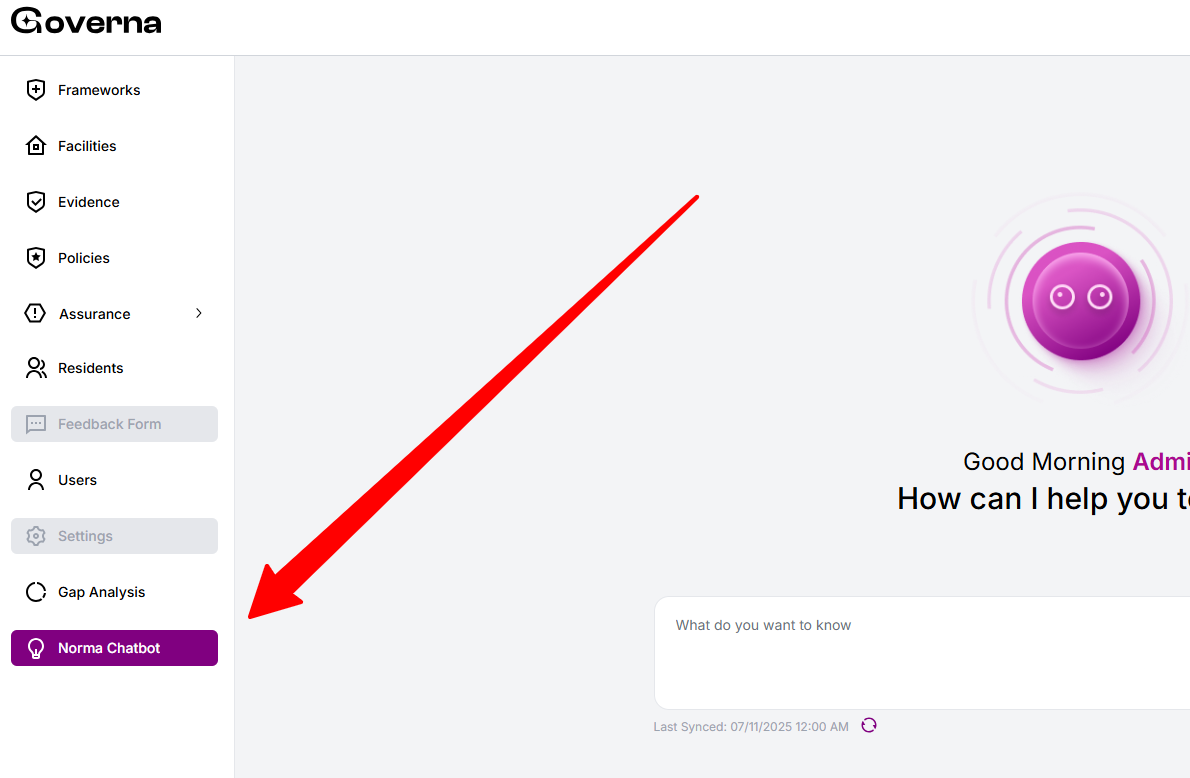
- Step 2: This will open the main chat interface, which will greet you with a message like, "Good Morning Admin, How can I help you today?".
2. How to Ask Norma a Question
At the bottom of the screen, you will see a chat input box with several options.
- Method 1: Type Your Question (Standard Chat)
- Step 1: Click inside the text box that says, "What do you want to know".
- Step 2: Type your question. You can ask complex questions about your data, such as, "how many falls were there at facility 1 this week?".
- Step 3: Click the "send" icon (the up arrow) to get your answer.
- Method 2: Speak Your Question (Voice Input)
- Step 1: Click the microphone icon on the left side of the chat box.
- Step 2: Your browser will ask for permission to "Use your microphones." Click "Allow".
- Step 3: Speak your question clearly, and it will be transcribed into the text box.
- Step 4: Click the "send" icon to get your answer.
- Method 3: Search Within Documents
- Step 1: Click the purple "Document Search" button.
- Step 2: This will likely open a new interface (or change the chat mode) to allow you to ask questions that Norma will answer by only searching inside your uploaded policies and evidence documents.
3. How to Understand Norma's Answers
Norma provides detailed, summarized answers by pulling data from all other sections (like Assurance, Residents, and Facilities).
- Example: A user asks, "how many falls were there at facility 1 this week?".
- Norma's Answer includes:
- A Direct Summary: "This week at Facility 01, there were four falls incidents reported...".
- A Detailed List: It lists each incident (e.g., "1. michael has had a fall," "2. Marget fell over the steps...") with its date, description, and current status.
- A Summary Table: It provides a clean table with the Incident, Date, Description, and Status for a quick overview.
- A Final Conclusion: It provides a concluding thought, such as "...several incidents still requiring follow-up actions to be completed".
4. How to Manage Your Chat History
You can access your previous conversations with Norma at any time.
- Step 1: On the main chat screen, click the "History" icon (it looks like a clock or archive, visible in the top-right of the chat area).
- Step 2: This will open a pop-up window showing your chat history.
- Step 3: In this window, you can:
- Search: Use the "Search" bar to find keywords in past conversations.
- View Old Chats: Scroll through a list of your previous questions from "This Year".
- Start a New Chat: Click "Create New Temporary Chat" to start a fresh conversation.
Share Article